

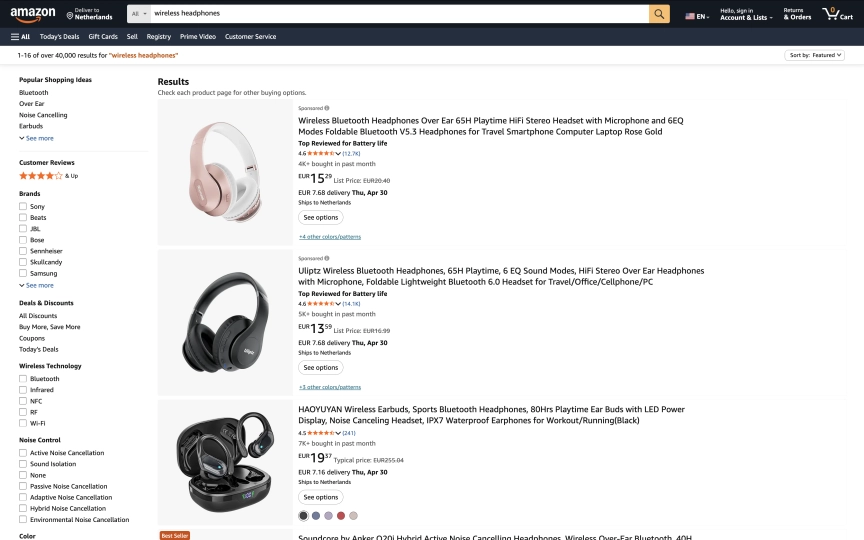
You fire a bunch of HTTP requests at Amazon, expecting product data, and hit a wall. A CAPTCHA. A 503. A blank page where JavaScript was supposed to render 48 products. Your User-Agent trick worked last month, but Amazon's anti-bot system got an upgrade and your scraper didn't.
This guide takes a different approach. Instead of fighting Amazon's defenses with proxy rotation scripts and CAPTCHA-solving services, we'll use a cloud browser API that handles the hard parts. You send a URL and an extraction schema. You get structured JSON back. Ten lines of code, four languages, real product data.
We'll scrape Amazon search results and product detail pages, handle the anti-bot system with residential proxies, extract structured product data as typed JSON, and build a complete search-to-detail scraping pipeline. Every code example uses real Amazon URLs and returns real data.
What you'll build:
- A working Amazon scraper that extracts product titles, prices, ratings, and reviews
- Search result extraction with configurable result limits and pagination
- Product detail page (PDP) scraping with price tracking fields
- A search-to-detail pipeline that pulls URLs from search and scrapes each product
- CSV and JSON export for the extracted data
- Anti-bot configuration that actually works on Amazon in 2026
TL;DR: Scrape Amazon product data with Browserbeam's API using residential proxies and resource blocking. Define an extraction schema, send one API call, get structured JSON. Works on both search results and product detail pages. Ten lines replaces the usual Selenium + BeautifulSoup + proxy rotation stack.
Quick Start: Scrape Amazon in One Request
Here's a complete Amazon scraper. Replace YOUR_API_KEY and run it.
Don't have an API key yet? Create a free Browserbeam account — you get 5,000 credits, no credit card required.
curl -s -X POST https://api.browserbeam.com/v1/sessions \
  -H "Authorization: Bearer YOUR_API_KEY" \
  -H "Content-Type: application/json" \
  -d '{
    "url": "https://www.amazon.com/s?k=wireless+headphones",
    "proxy": { "kind": "residential", "country": "us" },
    "block_resources": ["image", "font", "media"],
    "steps": [
      {
        "extract": {
          "products": [{
            "_parent": "[data-component-type=s-search-result]",
            "_limit": 5,
            "title": "h2 span >> text",
            "price": ".a-price > .a-offscreen >> text",
            "rating": ".a-icon-alt >> text"
          }]
        }
      },
      { "close": {} }
    ]
  }' | jq '.extraction'
from browserbeam import Browserbeam
client = Browserbeam(api_key="YOUR_API_KEY")
session = client.sessions.create(
url="https://www.amazon.com/s?k=wireless+headphones",
proxy={"kind": "residential", "country": "us"},
block_resources=["image", "font", "media"],
steps=[
{"extract": {
"products": [{
"_parent": "[data-component-type='s-search-result']",
"_limit": 5,
"title": "h2 span >> text",
"price": ".a-price > .a-offscreen >> text",
"rating": ".a-icon-alt >> text",
}]
}},
{"close": {}},
],
)
for product in session.extraction["products"]:
print(f"{product['title'][:60]}... {product['price']} ({product['rating']})")import Browserbeam from "browserbeam";
const client = new Browserbeam({ apiKey: "YOUR_API_KEY" });
const session = await client.sessions.create({
url: "https://www.amazon.com/s?k=wireless+headphones",
proxy: { kind: "residential", country: "us" },
block_resources: ["image", "font", "media"],
steps: [
{ extract: {
products: [{
_parent: "[data-component-type='s-search-result']",
_limit: 5,
title: "h2 span >> text",
price: ".a-price > .a-offscreen >> text",
rating: ".a-icon-alt >> text",
}],
}},
{ close: {} },
],
});
for (const product of session.extraction!.products as any[]) {
console.log(`${product.title.slice(0, 60)}... ${product.price} (${product.rating})`);
}require "browserbeam"
client = Browserbeam::Client.new(api_key: "YOUR_API_KEY")
session = client.sessions.create(
url: "https://www.amazon.com/s?k=wireless+headphones",
proxy: { kind: "residential", country: "us" },
block_resources: ["image", "font", "media"],
steps: [
{ "extract" => {
"products" => [{
"_parent" => "[data-component-type='s-search-result']",
"_limit" => 5,
"title" => "h2 span >> text",
"price" => ".a-price > .a-offscreen >> text",
"rating" => ".a-icon-alt >> text"
}]
}},
{ "close" => {} }
]
)
session.extraction["products"].each do |product|
puts "#{product['title'][0..59]}... #{product['price']} (#{product['rating']})"
endThat returns structured JSON:
{
  "products": [
    {
      "title": "Wireless Bluetooth Headphones Over Ear 65H Playtime...",
      "price": "$17.99",
      "rating": "4.6 out of 5 stars"
    },
    {
      "title": "TOZO HT3 Hybrid Noise Cancelling Headphones...",
      "price": "$29.99",
      "rating": "4.6 out of 5 stars"
    },
    {
      "title": "Sony WH-CH520 Wireless Headphones...",
      "price": "$38.00",
      "rating": "4.5 out of 5 stars"
    }
  ]
}
No browser binaries. No proxy rotation script. No CAPTCHA solver. The rest of this guide explains how each piece works and how to build a complete Amazon scraping pipeline.
What Data Can You Extract from Amazon?
Amazon product pages carry a lot of data. Here's what's available across the two main page types.
Search Results vs Product Detail Pages
Search results (/s?k=...) show product cards in a grid. Each card has a title, price, rating, review count, Prime badge, and a thumbnail. You get 20-48 products per page depending on the category.
Product detail pages (PDPs, /dp/{ASIN}) have the full picture: product title, all pricing tiers, detailed ratings, review count, availability, bullet-point features, and the ASIN (Amazon Standard Identification Number) that uniquely identifies every product.
| Category | Fields | Available On |
|---|---|---|
| Product identity | Title, ASIN, URL, brand, thumbnail | Search + PDP |
| Pricing | Current price, list price, Prime eligibility | Search + PDP |
| Social proof | Average rating, review count, "Best Seller" badge | Search + PDP |
| Listing details | Availability, shipping info, product features, description | PDP only |
Sample Data: Search Result
{
  "title": "Sony WH-CH520 Wireless Headphones Bluetooth On-Ear...",
  "price": "$38.00",
  "rating": "4.5 out of 5 stars"
}
Sample Data: Product Detail Page
{
  "title": "Sony WH-CH520 Wireless Headphones Bluetooth On-Ear Headset with Microphone and up to 50 Hours Battery Life with Quick Charging, Blue",
  "price": "$38.00",
  "rating": "4.5 out of 5 stars",
  "reviews_count": "(31,333)",
  "availability": "In Stock"
}
The PDP gives you the full product title (not truncated), the exact review count, and availability status. For price monitoring or product databases, you'll want both page types.
Scraping Amazon Search Results
Let's build the search scraper step by step.
Step 1: Extract Search Results
Amazon blocks datacenter IP ranges. In our testing, residential proxies returned complete search results on every attempt, while datacenter proxies got a "Sorry! Something went wrong!" page about 90% of the time. Use residential.
We also block images, fonts, and media to cut page weight and speed up rendering. Stylesheets stay because Amazon's layout depends on them for element positioning.
Amazon wraps each search result in a div with data-component-type="s-search-result". Inside that container, the title lives in an h2 span, the price in .a-price > .a-offscreen, and the rating in .a-icon-alt. We pass the extraction schema as a step in the session creation request so everything happens in a single API call:
curl -s -X POST https://api.browserbeam.com/v1/sessions \
  -H "Authorization: Bearer YOUR_API_KEY" \
  -H "Content-Type: application/json" \
  -d '{
    "url": "https://www.amazon.com/s?k=wireless+headphones",
    "proxy": { "kind": "residential", "country": "us" },
    "block_resources": ["image", "font", "media"],
    "steps": [
      {
        "extract": {
          "products": [{
            "_parent": "[data-component-type=s-search-result]",
            "_limit": 10,
            "title": "h2 span >> text",
            "price": ".a-price > .a-offscreen >> text",
            "rating": ".a-icon-alt >> text",
            "url": "h2 a >> href",
            "reviews": "span[aria-label] >> aria-label"
          }]
        }
      },
      { "close": {} }
    ]
  }' | jq '.extraction'
from browserbeam import Browserbeam
client = Browserbeam(api_key="YOUR_API_KEY")
session = client.sessions.create(
url="https://www.amazon.com/s?k=wireless+headphones",
proxy={"kind": "residential", "country": "us"},
block_resources=["image", "font", "media"],
steps=[
{"extract": {
"products": [{
"_parent": "[data-component-type='s-search-result']",
"_limit": 10,
"title": "h2 span >> text",
"price": ".a-price > .a-offscreen >> text",
"rating": ".a-icon-alt >> text",
"url": "h2 a >> href",
"reviews": "span[aria-label] >> aria-label",
}]
}},
{"close": {}},
],
)
products = session.extraction["products"]
print(f"Extracted {len(products)} products")import Browserbeam from "browserbeam";
const client = new Browserbeam({ apiKey: "YOUR_API_KEY" });
const session = await client.sessions.create({
url: "https://www.amazon.com/s?k=wireless+headphones",
proxy: { kind: "residential", country: "us" },
block_resources: ["image", "font", "media"],
steps: [
{ extract: {
products: [{
_parent: "[data-component-type='s-search-result']",
_limit: 10,
title: "h2 span >> text",
price: ".a-price > .a-offscreen >> text",
rating: ".a-icon-alt >> text",
url: "h2 a >> href",
reviews: "span[aria-label] >> aria-label",
}],
}},
{ close: {} },
],
});
const products = session.extraction!.products as any[];
console.log(`Extracted ${products.length} products`);require "browserbeam"
client = Browserbeam::Client.new(api_key: "YOUR_API_KEY")
session = client.sessions.create(
url: "https://www.amazon.com/s?k=wireless+headphones",
proxy: { kind: "residential", country: "us" },
block_resources: ["image", "font", "media"],
steps: [
{ "extract" => {
"products" => [{
"_parent" => "[data-component-type='s-search-result']",
"_limit" => 10,
"title" => "h2 span >> text",
"price" => ".a-price > .a-offscreen >> text",
"rating" => ".a-icon-alt >> text",
"url" => "h2 a >> href",
"reviews" => "span[aria-label] >> aria-label"
}]
}},
{ "close" => {} }
]
)
products = session.extraction["products"]
puts "Extracted #{products.length} products"The _parent selector finds repeating containers, _limit caps results. The >> text selector extracts visible text, >> href pulls link URLs, and >> aria-label reads accessibility attributes that Amazon uses for review counts.
Step 2: Handle Pagination
Amazon search results span multiple pages. To scrape page 2, navigate to the next page URL within the same session:
from browserbeam import Browserbeam

client = Browserbeam(api_key="YOUR_API_KEY")
schema = {
    "products": [{
        "_parent": "[data-component-type='s-search-result']",
        "title": "h2 span >> text",
        "price": ".a-price > .a-offscreen >> text",
        "rating": ".a-icon-alt >> text",
        "url": "h2 a >> href",
    }]
}

session = client.sessions.create(
    url="https://www.amazon.com/s?k=wireless+headphones",
    proxy={"kind": "residential", "country": "us"},
    block_resources=["image", "font", "media"],
    steps=[{"extract": schema}],
)
all_products = list(session.extraction["products"])

for page_num in range(2, 4):
    session.goto(f"https://www.amazon.com/s?k=wireless+headphones&page={page_num}")
    result = session.extract(**schema)
    all_products.extend(result.extraction["products"])

print(f"Total: {len(all_products)} products across 3 pages")
session.close()
Reusing the session across pages keeps cookies and state alive, which reduces the chance of triggering anti-bot checks. (Pro tip: Amazon caps search results at around 20 pages, so plan your scraping scope accordingly.)
Scraping Amazon Product Detail Pages
Product detail pages (PDPs) have a different layout than search results. The selectors change, and you get more data per page.
PDP Extraction Schema
curl -s -X POST https://api.browserbeam.com/v1/sessions \
  -H "Authorization: Bearer YOUR_API_KEY" \
  -H "Content-Type: application/json" \
  -d '{
    "url": "https://www.amazon.com/dp/B0BS1RT9S2",
    "proxy": { "kind": "residential", "country": "us" },
    "block_resources": ["image", "font", "media"],
    "steps": [
      {
        "extract": {
          "title": "#productTitle >> text",
          "price": ".a-price .a-offscreen >> text",
          "rating": "#acrPopover .a-icon-alt >> text",
          "reviews_count": "#acrCustomerReviewText >> text",
          "availability": "#availability span >> text"
        }
      },
      { "close": {} }
    ]
  }' | jq '.extraction'
from browserbeam import Browserbeam
client = Browserbeam(api_key="YOUR_API_KEY")
session = client.sessions.create(
url="https://www.amazon.com/dp/B0BS1RT9S2",
proxy={"kind": "residential", "country": "us"},
block_resources=["image", "font", "media"],
steps=[
{"extract": {
"title": "#productTitle >> text",
"price": ".a-price .a-offscreen >> text",
"rating": "#acrPopover .a-icon-alt >> text",
"reviews_count": "#acrCustomerReviewText >> text",
"availability": "#availability span >> text",
}},
{"close": {}},
],
)
print(session.extraction)import Browserbeam from "browserbeam";
const client = new Browserbeam({ apiKey: "YOUR_API_KEY" });
const session = await client.sessions.create({
url: "https://www.amazon.com/dp/B0BS1RT9S2",
proxy: { kind: "residential", country: "us" },
block_resources: ["image", "font", "media"],
steps: [
{ extract: {
title: "#productTitle >> text",
price: ".a-price .a-offscreen >> text",
rating: "#acrPopover .a-icon-alt >> text",
reviews_count: "#acrCustomerReviewText >> text",
availability: "#availability span >> text",
}},
{ close: {} },
],
});
console.log(session.extraction);require "browserbeam"
client = Browserbeam::Client.new(api_key: "YOUR_API_KEY")
session = client.sessions.create(
url: "https://www.amazon.com/dp/B0BS1RT9S2",
proxy: { kind: "residential", country: "us" },
block_resources: ["image", "font", "media"],
steps: [
{ "extract" => {
"title" => "#productTitle >> text",
"price" => ".a-price .a-offscreen >> text",
"rating" => "#acrPopover .a-icon-alt >> text",
"reviews_count" => "#acrCustomerReviewText >> text",
"availability" => "#availability span >> text"
}},
{ "close" => {} }
]
)
puts session.extractionNotice the difference: PDP extraction uses a flat schema (no _parent or _limit) because there's only one product per page. Search results use a list schema with _parent to match repeating product cards.
Building a Search-to-Detail Pipeline
The real power comes from chaining search and detail extraction. Scrape product URLs from search results, then visit each one for full data:
from browserbeam import Browserbeam

client = Browserbeam(api_key="YOUR_API_KEY")
session = client.sessions.create(
    url="https://www.amazon.com/s?k=wireless+headphones",
    proxy={"kind": "residential", "country": "us"},
    block_resources=["image", "font", "media"],
    steps=[{
        "extract": {
            "products": [{
                "_parent": "[data-component-type='s-search-result']",
                "_limit": 3,
                "title": "h2 span >> text",
                "url": "h2 a >> href",
            }]
        }
    }],
)

detailed_products = []
for product in session.extraction["products"]:
    product_url = product["url"]
    if not product_url.startswith("http"):
        product_url = f"https://www.amazon.com{product_url}"

    session.goto(product_url)
    detail = session.extract(
        title="#productTitle >> text",
        price=".a-price .a-offscreen >> text",
        rating="#acrPopover .a-icon-alt >> text",
        reviews_count="#acrCustomerReviewText >> text",
        availability="#availability span >> text",
    )
    detailed_products.append(detail.extraction)

session.close()

for p in detailed_products:
    print(f"{p['title'][:60]}... | {p['price']} | {p['rating']}")
This uses a single session for the entire pipeline. The browser keeps its cookies and session state between navigations, which looks more like a real user browsing Amazon.
How to Scrape Amazon Prices
Price is the field most teams want from Amazon. Repricing tools, deal trackers, and competitor monitors all start with one number: the current price. Amazon makes this harder than it looks because the price lives in several different DOM locations depending on the product type (standard listing, deal, subscribe-and-save, variation picker).
The most reliable price selector is .a-price .a-offscreen, which holds the full formatted price string (for example, $24.99). Amazon renders a visually-split price for sighted users ($24 and 99 in separate spans) plus an offscreen copy for screen readers. The offscreen copy is the clean one to extract.
Extract Just the Price
If price is all you need, keep the schema small. A single field keeps the response tiny and fast:
from browserbeam import Browserbeam

client = Browserbeam(api_key="YOUR_API_KEY")
session = client.sessions.create(
    url="https://www.amazon.com/dp/B0BS1RT9S2",
    proxy={"kind": "residential", "country": "us"},
    block_resources=["image", "font", "media"],
    steps=[
        {"extract": {
            "price": ".a-price .a-offscreen >> text",
            "list_price": ".basisPrice .a-offscreen >> text",
            "availability": "#availability span >> text",
        }},
        {"close": {}},
    ],
)

print(session.extraction)
The list_price field captures the struck-through original price when a product is on sale, so you can compute the discount yourself. If the field is missing, the product is not discounted.
Track Amazon Price Changes Over Time
A single price read is a snapshot. Price monitoring needs a schedule, a store for history, and a diff. Run the extraction above on a cron schedule, write each result to a database with a timestamp, and compare against the previous value to detect drops. The full pattern (storage, threshold-based diffing, and Slack or email alerts) is in the price monitoring bot guide, which works with the Amazon scraper here as its data source.
For tracking many products, reuse one session across requests and add a short delay between products. Both points are covered in the anti-bot section below.
Is It Legal to Scrape Amazon?
This is not legal advice, but here is the practical picture as of 2026. Scraping publicly visible Amazon pages (prices, titles, ratings) is not a crime in most jurisdictions, and US courts have generally held that scraping public data does not violate the Computer Fraud and Abuse Act (see the hiQ v. LinkedIn line of cases). What scraping can violate is Amazon's Terms of Service, which prohibit automated access. That is a contract issue, not a criminal one, and the usual consequence is an IP block or account ban rather than a lawsuit.
A few practical guidelines keep you on the safe side:
- Only collect public data. Do not scrape behind a login, and do not access anything that requires an account.
- Do not republish copyrighted content. Product descriptions, images, and reviews are copyrighted by Amazon or the seller. Extract data points (price, rating), not wholesale content.
- Respect rate limits. Aggressive scraping that degrades the site is the behavior most likely to draw a response. Keep request rates modest.
- Consider the official API for commercial use. Amazon's Product Advertising API is the sanctioned path for affiliate and commercial integrations.
If you only need a handful of products for personal use, the practical risk is low. For commercial pipelines at scale, weigh the official API against scraping and document your compliance reasoning.
Handling Amazon's Anti-Bot Protection
Amazon invests heavily in bot detection. Understanding what triggers blocks helps you scrape reliably.
Why Datacenter Proxies Fail on Amazon
Amazon maintains blocklists of IP ranges from major datacenter providers (AWS, GCP, Azure, and hosting companies). When a request comes from one of these ranges, Amazon returns a "Sorry! Something went wrong!" page or a CAPTCHA challenge instead of product data.
Residential proxies route through real ISP IP addresses. Amazon can't blanket-block residential IPs without also blocking real customers. That's why residential proxies work where datacenter proxies don't. For a full breakdown of the tradeoffs, costs, and when each type is worth it, see residential vs datacenter proxies.
| Proxy Type | Amazon Success Rate | Cost | Speed |
|---|---|---|---|
| Datacenter | ~10% (blocked) | Low | Fast |
| Residential | ~97% | Higher | Slightly slower |
Resource Blocking Cuts Page Weight
Amazon product pages are heavy. A typical search results page loads 3-5 MB of images, fonts, tracking scripts, and video previews. Blocking unnecessary resources cuts load time and reduces proxy bandwidth costs.
{
  "block_resources": ["image", "font", "media"]
}
We keep stylesheets enabled because Amazon uses CSS for layout calculations. Blocking stylesheets can cause elements to shift positions, breaking CSS selectors.
| Resource | Blocked? | Why |
|---|---|---|
| Images | Yes | Product thumbnails, ads, banners. Not needed for data extraction. |
| Fonts | Yes | Custom font files. Text renders with system fonts. |
| Media | Yes | Video previews, audio. Irrelevant to product data. |
| Stylesheets | No | Amazon's DOM structure depends on CSS for element positioning. |
Session Reuse and Rate Limiting
Reuse sessions when scraping multiple pages. Creating a new session for every request is expensive and looks suspicious to Amazon's systems.
Keep a reasonable pace. One request every 2-3 seconds is enough. Amazon's anti-bot system flags rapid sequential requests from the same session, even through residential proxies.
Saving and Exporting Your Data
Once you've extracted product data, you'll want to save it somewhere useful.
Export to CSV
import csv

def save_products_csv(products, filename="amazon_products.csv"):
    if not products:
        return

    fieldnames = ["title", "price", "rating", "reviews_count", "availability"]
    with open(filename, "w", newline="", encoding="utf-8") as f:
        writer = csv.DictWriter(f, fieldnames=fieldnames, extrasaction="ignore")
        writer.writeheader()
        writer.writerows(products)
    print(f"Saved {len(products)} products to {filename}")

save_products_csv(detailed_products)
Export to JSON
import json

def save_products_json(products, filename="amazon_products.json"):
    with open(filename, "w", encoding="utf-8") as f:
        json.dump(products, f, indent=2, ensure_ascii=False)
    print(f"Saved {len(products)} products to {filename}")

save_products_json(detailed_products)
For production use, consider storing data in a database (PostgreSQL, SQLite) and scheduling scraping jobs with cron or a task queue. The scaling web automation guide covers production patterns in detail.
DIY Amazon Scraping vs Browserbeam API
Let's compare the Browserbeam approach with a traditional DIY setup using Python, Requests, and BeautifulSoup.
The DIY Approach (Python + BeautifulSoup)
import requests
from bs4 import BeautifulSoup

headers = {
    "User-Agent": "Mozilla/5.0 (Macintosh; Intel Mac OS X 10_15_7) "
                  "AppleWebKit/537.36 (KHTML, like Gecko) "
                  "Chrome/120.0.0.0 Safari/537.36",
    "Accept-Language": "en-US,en;q=0.9",
}

response = requests.get(
    "https://www.amazon.com/s",
    params={"k": "wireless headphones"},
    headers=headers,
)

soup = BeautifulSoup(response.text, "html.parser")
items = soup.select('[data-component-type="s-search-result"]')

products = []
for item in items:
    title_el = item.select_one("h2 a span")
    price_el = item.select_one(".a-price > .a-offscreen")
    rating_el = item.select_one(".a-icon-star-small .a-icon-alt")

    products.append({
        "title": title_el.text.strip() if title_el else None,
        "price": price_el.text.strip() if price_el else None,
        "rating": rating_el.text.strip() if rating_el else None,
    })

for p in products[:3]:
    print(f"{p['title'][:60]}... {p['price']} ({p['rating']})")
This looks reasonable. But on a good day, with the right headers and a clean IP, you'll get results. On most days, you'll get a CAPTCHA page, a 503, or a redirect to Amazon's bot detection screen.
Side-by-Side Comparison
| Factor | DIY (BeautifulSoup) | Browserbeam API |
|---|---|---|
| Lines of code | 25-40 per scraper | 10-15 per scraper |
| JavaScript rendering | No (misses dynamic content) | Yes (full Chromium) |
| Proxy management | You manage rotation, IP pools | Built-in residential proxies |
| CAPTCHA handling | Separate service ($2-5/1000 solves) | Built-in auto-solve |
| Selector maintenance | Breaks when Amazon redesigns | Same selectors, less fragile |
| Multi-language | Python only (or rewrite for each) | cURL, Python, TypeScript, Ruby |
| Setup time | Hours (proxies, CAPTCHA service, error handling) | Minutes (install SDK, set API key) |
When DIY Still Makes Sense
If you're scraping a static HTML page with no anti-bot protection, BeautifulSoup is simpler and cheaper. For Amazon specifically, the anti-bot measures, JavaScript rendering requirements, and selector maintenance burden make the DIY approach expensive in engineering hours.
Real-World Amazon Scraping Use Cases
1. Price Monitoring Dashboard
Track competitor prices across product categories and get alerts when prices drop:
def check_price(client, asin, target_price):
    session = client.sessions.create(
        url=f"https://www.amazon.com/dp/{asin}",
        proxy={"kind": "residential", "country": "us"},
        block_resources=["image", "font", "media"],
        steps=[
            {"extract": {
                "title": "#productTitle >> text",
                "price": ".a-price .a-offscreen >> text",
            }},
            {"close": {}},
        ],
    )

    price_str = session.extraction["price"].replace("$", "").replace(",", "")
    current_price = float(price_str)

    if current_price <= target_price:
        print(f"ALERT: {session.extraction['title'][:50]} dropped to ${current_price:.2f}")

    return current_price

check_price(client, "B0BS1RT9S2", 35.00)
Run this on a schedule (hourly or daily) to build a price history and catch deals. Store the results in a database and build a simple dashboard with your preferred framework.
2. Competitive Product Tracking
Compare your product against competitors on the same search results page:
def compare_competitors(client, search_query, your_brand):
    session = client.sessions.create(
        url=f"https://www.amazon.com/s?k={search_query}",
        proxy={"kind": "residential", "country": "us"},
        block_resources=["image", "font", "media"],
        steps=[
            {"extract": {
                "products": [{
                    "_parent": "[data-component-type='s-search-result']",
                    "_limit": 20,
                    "title": "h2 span >> text",
                    "price": ".a-price > .a-offscreen >> text",
                    "rating": ".a-icon-alt >> text",
                }]
            }},
            {"close": {}},
        ],
    )

    your_products = []
    competitor_products = []
    for p in session.extraction["products"]:
        if your_brand.lower() in p["title"].lower():
            your_products.append(p)
        else:
            competitor_products.append(p)

    return {"yours": your_products, "competitors": competitor_products}

data = compare_competitors(client, "wireless headphones", "Sony")
3. Review Sentiment Collection
Extract review data from PDPs for sentiment analysis or quality monitoring:
def collect_reviews(client, asin):
    session = client.sessions.create(
        url=f"https://www.amazon.com/dp/{asin}",
        proxy={"kind": "residential", "country": "us"},
        block_resources=["image", "font", "media"],
        steps=[
            {"extract": {
                "product_title": "#productTitle >> text",
                "overall_rating": "#acrPopover .a-icon-alt >> text",
                "total_reviews": "#acrCustomerReviewText >> text",
                "star_breakdown": [{
                    "_parent": "#histogramTable tr",
                    "stars": "td:first-child >> text",
                    "percentage": ".a-text-right >> text",
                }],
            }},
            {"close": {}},
        ],
    )
    return session.extraction

reviews = collect_reviews(client, "B0BS1RT9S2")
print(f"Product: {reviews['product_title'][:50]}")
print(f"Rating: {reviews['overall_rating']}")
print(f"Total: {reviews['total_reviews']}")
Common Mistakes When Scraping Amazon
1. Using Datacenter Proxies
The most common mistake. Amazon blocks datacenter IPs aggressively. If your scraper returns "Sorry! Something went wrong!" or a CAPTCHA page, switch to residential proxies before debugging anything else.
Fix: Set proxy: { kind: "residential", country: "us" } in your session configuration.
2. Not Blocking Unnecessary Resources
Amazon pages load 3-5 MB of images, videos, and fonts. Without resource blocking, you're paying for proxy bandwidth on data you don't need and adding seconds to every request.
Fix: Add block_resources: ["image", "font", "media"] to your session. Keep stylesheets enabled.
3. Creating a New Session for Every Page
Each new session launches a fresh browser with empty cookies. Amazon's systems flag sessions that appear out of nowhere with no browsing history. Reuse sessions for multi-page scraping.
Fix: Use session.goto(url) to navigate within an existing session instead of creating a new one for each URL.
4. Scraping Too Fast Without Delays
Sending 50 requests per second through the same proxy triggers rate limiting regardless of your IP reputation. Amazon will start returning CAPTCHAs or empty results.
Fix: Add 2-3 second delays between requests. For large scraping jobs, spread requests across multiple sessions with staggered timing.
5. Hardcoding Selectors Without Fallbacks
Amazon A/B tests their frontend constantly. The price element might be .a-price > .a-offscreen today and .a-price-whole + .a-price-fraction tomorrow. Hardcoding a single selector path breaks when Amazon ships a new variant.
Fix: Use the observe endpoint to get full page markdown when extract returns empty fields. Observe works even when CSS selectors change because it reads the rendered page content directly.
Frequently Asked Questions
Is it legal to scrape Amazon product data?
Amazon's Terms of Service prohibit automated data collection. However, scraping publicly visible product data (prices, titles, ratings) is generally considered legal under US law. The hiQ Labs v. LinkedIn ruling (2022) established that scraping publicly available data doesn't violate the Computer Fraud and Abuse Act. Amazon enforces its restrictions through anti-bot technology rather than lawsuits against individual scrapers. Consult a lawyer if you're building a commercial product based on scraped Amazon data.
Does Amazon block web scrapers?
Yes. Amazon uses behavioral analysis, IP reputation scoring, CAPTCHA challenges, and browser fingerprinting to detect automated access. Datacenter proxy IPs are blocked almost immediately. Residential proxies with proper resource blocking and reasonable request rates work reliably. Browserbeam handles residential proxies and automatic CAPTCHA solving if one appears.
How do I scrape Amazon with Python?
Install the Browserbeam Python SDK with pip install browserbeam. Create a client with your API key and call sessions.create() with a URL, residential proxy, and an extraction schema in the steps parameter. The extracted data is available on session.extraction immediately. See the Quick Start section above for a complete working example.
Is there an official Amazon API for product data?
Amazon's Product Advertising API exists but has strict requirements. You need an approved Amazon Associates account, and the API returns limited data. It doesn't include real-time pricing for all products, and the rate limits are restrictive. Most teams that need comprehensive product data end up scraping because the official API doesn't cover their use case.
Can I scrape Amazon prices in real-time?
Yes, but "real-time" depends on your definition. Each Browserbeam session takes 5-10 seconds to create, navigate, extract, and close. For a watchlist of 100 products, a full refresh takes about 15 minutes with sequential requests (or 2-3 minutes with parallel sessions). That's fast enough for hourly price monitoring, which catches most price changes.
What is the best Amazon scraper in 2026?
For structured data extraction with built-in proxy support and CAPTCHA handling, a cloud browser API like Browserbeam handles most of the heavy lifting. For simple one-off scrapes on unprotected pages, BeautifulSoup with Requests is lighter weight. For teams already running Playwright locally, adding proxy rotation and CAPTCHA solving gets you most of the way there, but you're maintaining the infrastructure yourself.
How do I scrape Amazon without getting blocked?
Four things matter: residential proxies (not datacenter), resource blocking to reduce page weight, session reuse across pages, and reasonable request rates (2-3 seconds between requests). Browserbeam's residential proxy option and resource blocking handle the first two. The anti-bot section in this guide covers the full setup.
Start Scraping Amazon Today
We covered a lot of ground. You now have working code to scrape Amazon search results, extract product detail pages, build search-to-detail pipelines, and export the data as CSV or JSON. The extraction schemas work with real Amazon URLs and return real product data.
The key takeaway: Amazon scraping doesn't require a complex stack of proxy rotators, CAPTCHA solvers, and Selenium scripts anymore. A residential proxy, resource blocking, and a declarative extraction schema handle the hard parts.
Try changing the search query in the Quick Start example. Replace wireless+headphones with your product category. Adjust the _limit to pull more results. Point the PDP scraper at a different ASIN. The schemas work the same way across all Amazon product categories.
For the complete API reference, check the Browserbeam documentation. The structured web scraping guide goes deeper on extraction schemas. And if you're building an AI agent that needs Amazon data, the web scraping agent tutorial shows how to wire up the full pipeline.